Intellerator Documentation for Customers
This documentation outlines the process for providing required information, configuration options, and step-by-step instructions for securely granting access and setting up dashboard.
Customer Information Form
To ensure a smooth setup, please complete the form with required information:
-
Server Name:\ (e.g., SQL Server instance name or address)
-
Database Names:\ (List all databases relevant to the dashboard)
-
Primary Contact Person:\ (Name and email)
-
Tenant ID and Domain:\ Microsoft 365 Tenant ID and default domain name (e.g., yourcompany.onmicrosoft.com)
-
Additional Information:\ (Any specific requirements or instructions)
Configuration Options
There are three options for configuring dashboard access and setup. Our preferred option is Option 1, which ensures the most secure and streamlined process.
Option 1 (Preferred): Add Our User Account (Powerbi.install@codis.co.uk) to Your Tenant
Steps:
-
Add our provided user account to your Microsoft 365 tenant.
-
Assign this account to a security group (Power BI Admins).
-
Grant this user the \"Fabric Administrator\" role.
Where to Go:
-
Microsoft 365 Admin Center:
-
Navigate to Users > Guest Users.
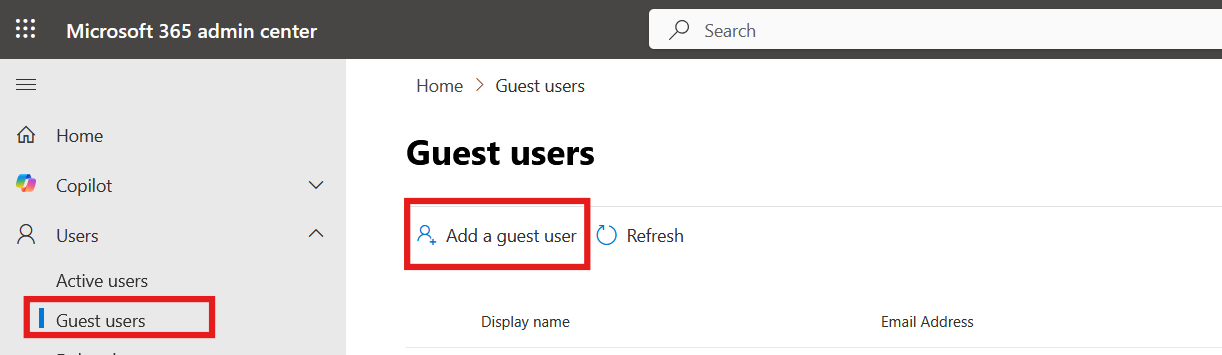
- Add a guest user > Invite user> Add a new user (our provided account).
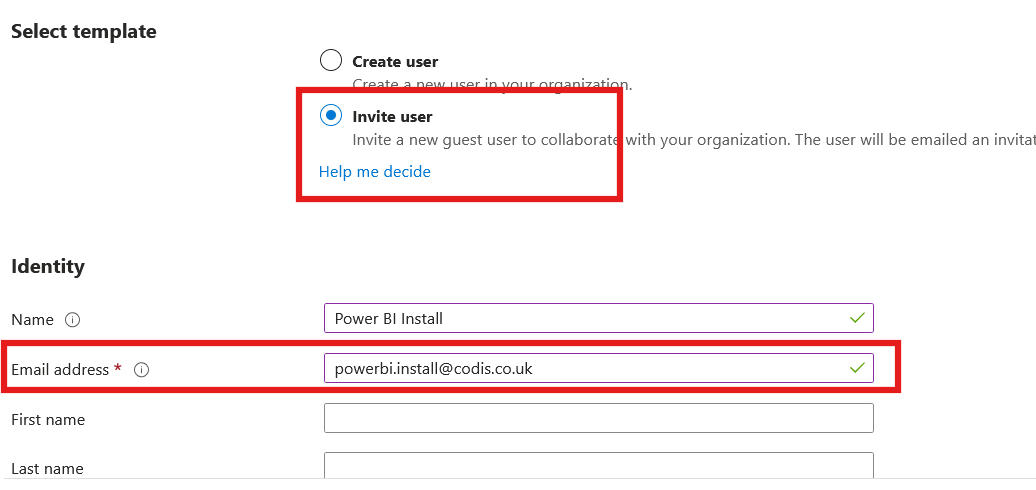
-
Assign to the security group (Power BI Admins) and Select Add roles, check \"Fabric Administrator\"
-
Review the information and invite the user account.
Permissions to Grant:
-
Membership in the 'Power BI Admins \' security group.
-
Fabric Administrator role.
What Happens Next:
- Once access is granted, our team will handle the remaining configuration, ensuring your dashboard is set up securely and efficiently.
Option 2: Self-Service Setup (Instructions Provided)
-
Your IT team creates a temporary user account within your Microsoft 365 tenant.
-
Assign a Power BI Pro license to this temporary account.
-
Grant this temporary account the \"Fabric Administrator\" role (as described in Option 1 permissions).
-
Provide the login credentials (username and password) for this temporary account to us.\
Our team will use these credentials to perform the setup.
Option 3: Remote Session Setup
-
Schedule a remote session with us.
-
During the session, provide access to an account with the necessary permissions (as described in Option 1).
-
Our team will perform the setup live, with your oversight.
Fabric Admin Portal
To allow installation of template apps, changes need to be made in the Power BI admin portal.
-
Go to the user tenant
-
Navigate to the Admin Portal
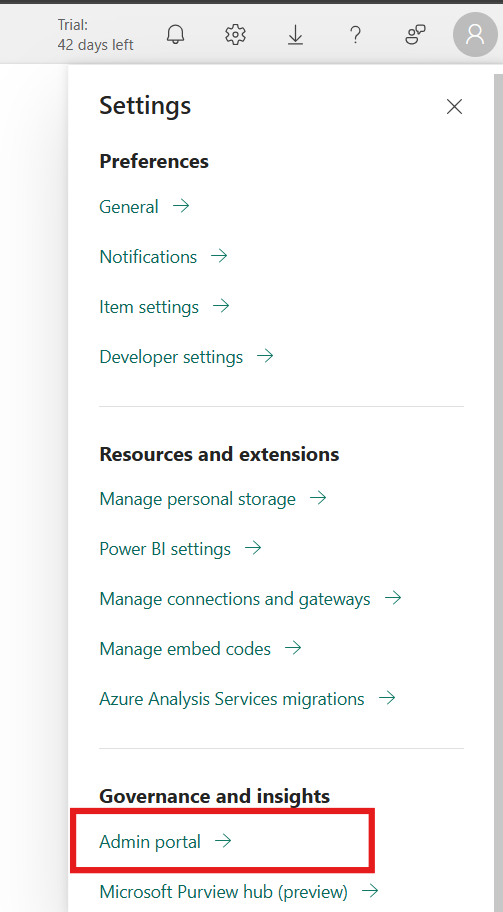
- Update the following settings for template apps
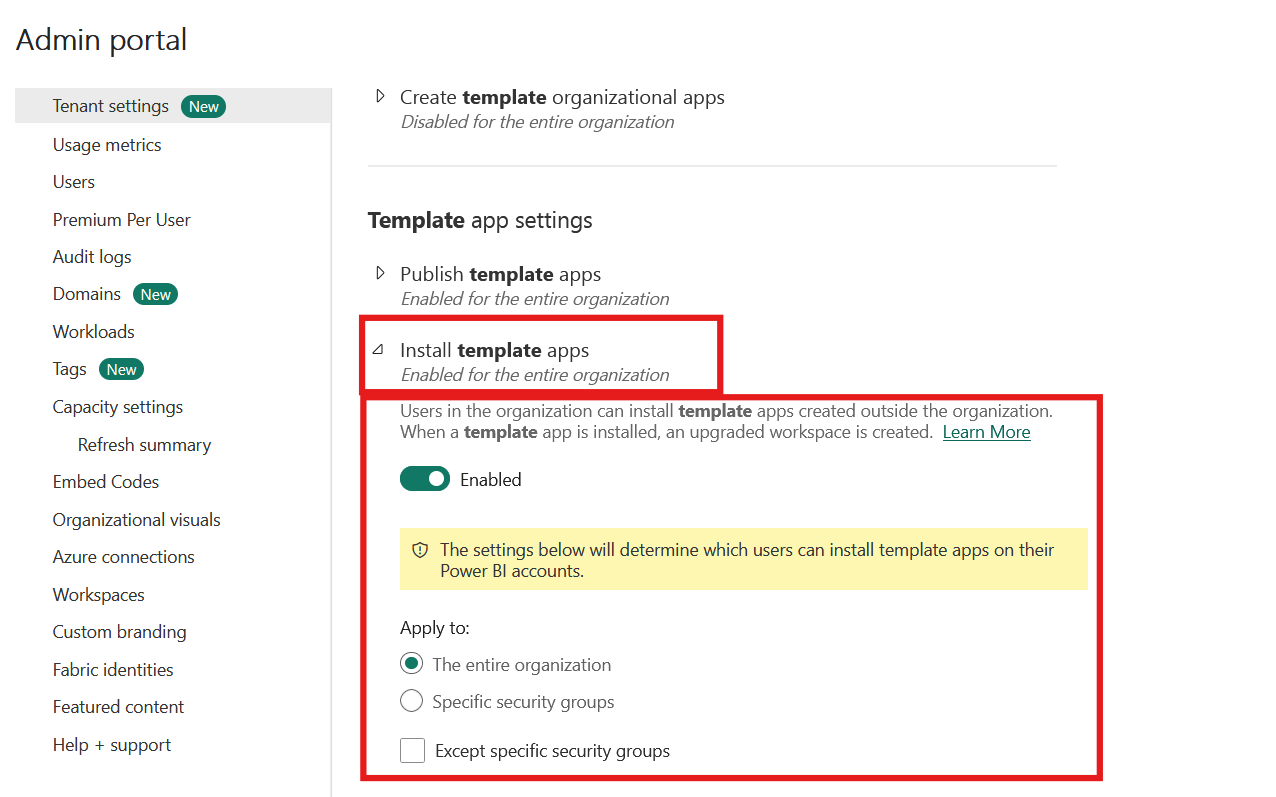
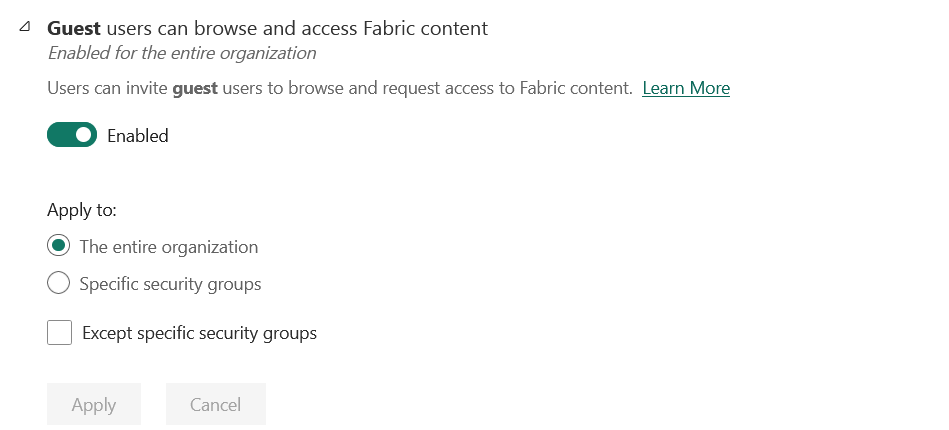 - This needs to be updated to access the workspace by guest user and settings for semantic model
Note: The changes can take some time to apply.